<?xml version="1.0" encoding="utf-8"?>
<feed xmlns="http://www.w3.org/2005/Atom">
  <title>文蕙俊</title>
  
  <subtitle>为人夫 为人父</subtitle>
  <link href="/atom.xml" rel="self"/>
  
  <link href="https://kangjun.online/"/>
  <updated>2020-06-03T15:15:17.042Z</updated>
  <id>https://kangjun.online/</id>
  
  <author>
    <name>Jones Kong</name>
    
  </author>
  
  <generator uri="http://hexo.io/">Hexo</generator>
  
  <entry>
    <title>STM32学习笔记 之 STM32CubeIDE调试</title>
    <link href="https://kangjun.online/technology/stm32-note-stm32cubeide-debug.html"/>
    <id>https://kangjun.online/technology/stm32-note-stm32cubeide-debug.html</id>
    <published>2020-06-03T13:53:50.000Z</published>
    <updated>2020-06-03T15:15:17.042Z</updated>
    
    <content type="html"><![CDATA[<link rel="stylesheet" class="aplayer-secondary-style-marker" href="\assets\css\APlayer.min.css"><script src="\assets\js\APlayer.min.js" class="aplayer-secondary-script-marker"></script><script class="meting-secondary-script-marker" src="\assets\js\Meting.min.js"></script><p>接上篇工程编译和构建，本文记录如何使用STM32CubeIDE的在线调试功能，以及调试过程中相关的工具使用。</p><a id="more"></a><h3 id="调试配置"><a href="#调试配置" class="headerlink" title="调试配置"></a>调试配置</h3><ul><li>点击debug配置工具，选择Debug Configuration<br><img src="https://cdn.jsdelivr.net/gh/hello-gcc/blog_pic_bed/stm32cubeide_debug_00.png" alt></li><li>新建调试，STM32 Cortex-M C/C++ Application<br><img src="https://cdn.jsdelivr.net/gh/hello-gcc/blog_pic_bed/stm32cubeide_debug_01.png" alt></li><li>调试配置文件路径<br><img src="https://cdn.jsdelivr.net/gh/hello-gcc/blog_pic_bed/stm32cubeide_debug_02.png" alt></li><li>配置调试器<br><img src="https://cdn.jsdelivr.net/gh/hello-gcc/blog_pic_bed/stm32cubeide_debug_03.png" alt></li></ul><h3 id="在线调试"><a href="#在线调试" class="headerlink" title="在线调试"></a>在线调试</h3><ul><li>点击Debug就可以开始调试了，此时，程序进入main函数，并且会停在入口的init函数<code>HAL_Init()</code></li></ul><h3 id="调试工具"><a href="#调试工具" class="headerlink" title="调试工具"></a>调试工具</h3><ul><li>在调试过程中，有非常多的工具可以使用，为我们调试程序带来便捷，并且在出现异常退出或者段错误时，调试窗口可以给出出错前调用的函数，非常实用的功能<br><img src="https://cdn.jsdelivr.net/gh/hello-gcc/blog_pic_bed/stm32cubeide_debug_04.png" alt></li></ul>]]></content>
    
    <summary type="html">
    
      &lt;p&gt;接上篇工程编译和构建，本文记录如何使用STM32CubeIDE的在线调试功能，以及调试过程中相关的工具使用。&lt;/p&gt;
    
    </summary>
    
      <category term="技术" scheme="https://kangjun.online/categories/technology/"/>
    
    
      <category term="STM32" scheme="https://kangjun.online/tags/STM32/"/>
    
      <category term="STM32CubeIDE" scheme="https://kangjun.online/tags/STM32CubeIDE/"/>
    
  </entry>
  
  <entry>
    <title>STM32学习笔记 之 STM32CubeIDE工程创建和编译</title>
    <link href="https://kangjun.online/technology/stm32-note-stm32cubeide-build.html"/>
    <id>https://kangjun.online/technology/stm32-note-stm32cubeide-build.html</id>
    <published>2020-05-31T14:35:37.000Z</published>
    <updated>2020-06-01T16:51:00.940Z</updated>
    
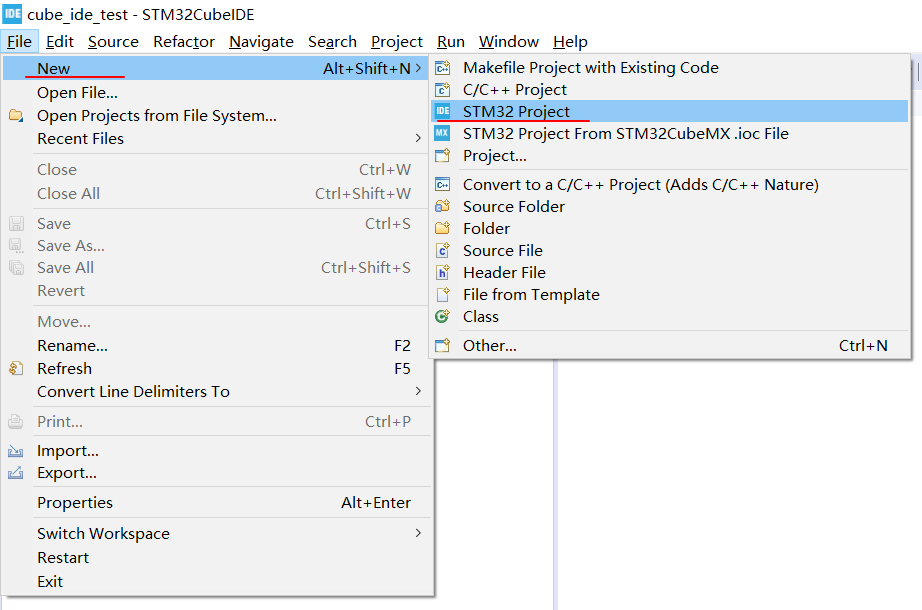
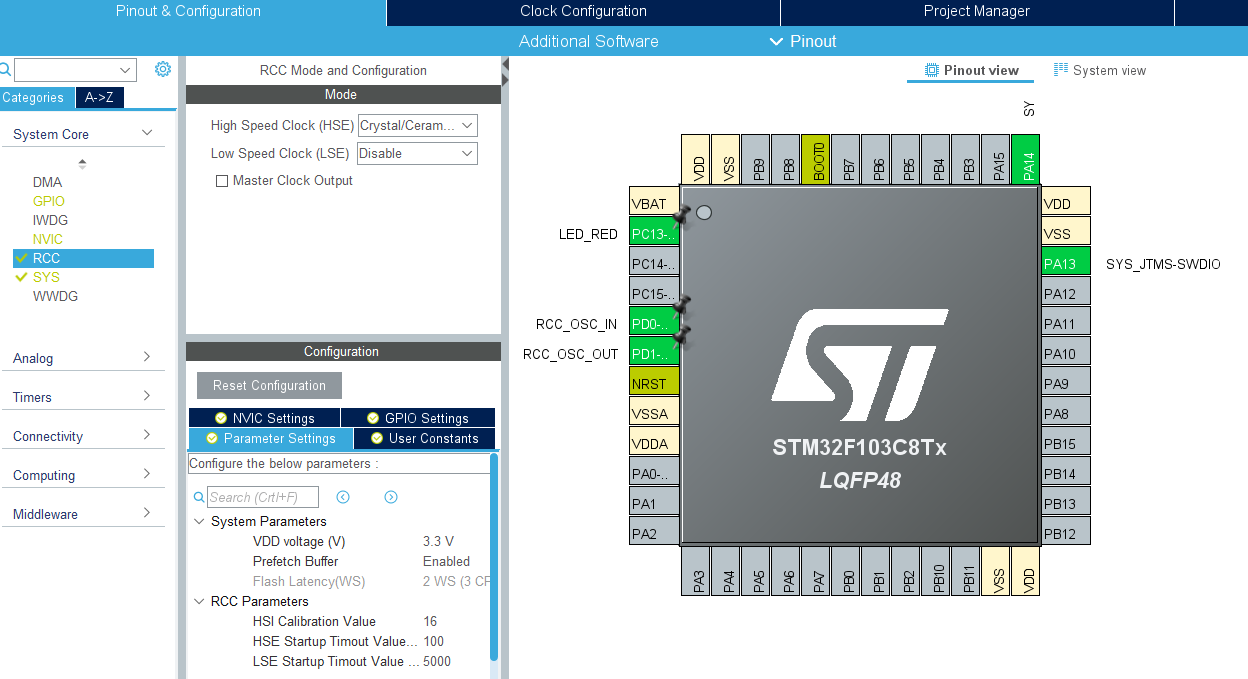
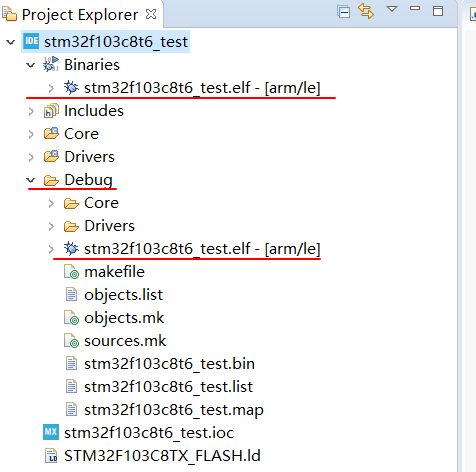
    <content type="html"><![CDATA[<link rel="stylesheet" class="aplayer-secondary-style-marker" href="\assets\css\APlayer.min.css"><script src="\assets\js\APlayer.min.js" class="aplayer-secondary-script-marker"></script><script class="meting-secondary-script-marker" src="\assets\js\Meting.min.js"></script><p>上篇文章简单介绍了一下STM32CubeIDE工具及其安装，也看了下它的类eclipse界面。本文将介绍如何创建一个STM32工程和基本的操作，以及如何编译出一个可执行文件。</p><a id="more"></a><h3 id="STM32CubeIDE-工程创建"><a href="#STM32CubeIDE-工程创建" class="headerlink" title="STM32CubeIDE 工程创建"></a>STM32CubeIDE 工程创建</h3><h4 id="Type-A：新建工程"><a href="#Type-A：新建工程" class="headerlink" title="Type A：新建工程"></a>Type A：新建工程</h4><ul><li>打开 File-&gt; New -&gt; STM32 Project<br><img src="https://cdn.jsdelivr.net/gh/hello-gcc/blog_pic_bed/imgstm32cubeide_build_00.png" alt></li><li>在搜索框中输入主控芯片的型号，可以在右侧查找到指定的MCU，点击Next<br><img src="https://cdn.jsdelivr.net/gh/hello-gcc/blog_pic_bed/imgstm32cubeide_build_01.png" alt></li><li>输入工程名，并且选择相应的编程语言、目标文件和使用的模板工程，点击Finish，这样就创建了一个STM32CubeMX文件<br><img src="https://cdn.jsdelivr.net/gh/hello-gcc/blog_pic_bed/imgstm32cubeide_build_02.png" alt></li><li>配置完工程下的CubeMX文件之后，选择Project Manager选项卡，配置生成相应的工程文件<br><img src="https://cdn.jsdelivr.net/gh/hello-gcc/blog_pic_bed/imgstm32cubeide_build_03.png" alt></li><li>配置时钟和相应的GPIO口<br><img src="https://cdn.jsdelivr.net/gh/hello-gcc/blog_pic_bed/stm32cubeide_build_04.png" alt></li><li>此时保存.ioc文件，提示是否生成代码，点击Yes，则生成工程代码<br><img src="https://cdn.jsdelivr.net/gh/hello-gcc/blog_pic_bed/stm32cubeide_build_05.png" alt><br><img src="https://cdn.jsdelivr.net/gh/hello-gcc/blog_pic_bed/stm32cubeide_build_06.png" alt></li></ul><h4 id="Type-B：通过CubeMX文件创建工程"><a href="#Type-B：通过CubeMX文件创建工程" class="headerlink" title="Type B：通过CubeMX文件创建工程"></a>Type B：通过CubeMX文件创建工程</h4><ul><li>如果已经有CubeMX生成的ioc文件，则可以打开 File -&gt; New -&gt; STM32 Project From STM32CubeMX .ioc File，相应的文件<br><img src="https://cdn.jsdelivr.net/gh/hello-gcc/blog_pic_bed/stm32cubeide_build_07.png" alt></li><li>打开指定的ioc文件，点击Finish，然后就是配置文件生成代码，同上述Type A方法类似，不再赘诉<br><img src="https://cdn.jsdelivr.net/gh/hello-gcc/blog_pic_bed/stm32cubeide_build_08.png" alt></li></ul><h3 id="STM32CubeIDE-工程编译"><a href="#STM32CubeIDE-工程编译" class="headerlink" title="STM32CubeIDE 工程编译"></a>STM32CubeIDE 工程编译</h3><h4 id="工程简介"><a href="#工程简介" class="headerlink" title="工程简介"></a>工程简介</h4><ul><li>工程创建后，生成了对应的代码，从上述的图片中可以看到工程中的主要几个文件夹：Includes、Core、Drivers已经ioc和ld文件</li></ul><table><thead><tr><th>Folder</th><th>Description</th></tr></thead><tbody><tr><td>Includes</td><td>所有库的头文件</td></tr><tr><td>Core</td><td>用户编码文件和头文件</td></tr><tr><td>Drivers</td><td>CMSIS和HAL库文件和头文件</td></tr></tbody></table><h4 id="编译环境配置和结果"><a href="#编译环境配置和结果" class="headerlink" title="编译环境配置和结果"></a>编译环境配置和结果</h4><ul><li>右键点击工程，选择Properties，打开选项卡，C/C++ Build –&gt; Settings进行编译相关配置<br><img src="https://cdn.jsdelivr.net/gh/hello-gcc/blog_pic_bed/stm32cubeide_build_09.png" alt></li><li>在Tool Settings选项卡下：<ul><li>编译输出配置MCU Post build outputs，指定输出文件为hex和bin</li><li>汇编配置MCU GCC Assembler</li><li>编译配置MCU GCC Compiler，头文件，宏定义，优化等级等</li><li>链接配置MCU GCC Linker，链接库等<br><img src="https://cdn.jsdelivr.net/gh/hello-gcc/blog_pic_bed/stm32cubeide_build_10.png" alt></li></ul></li><li>点击构建图标，编译当前工程<br><img src="https://cdn.jsdelivr.net/gh/hello-gcc/blog_pic_bed/stm32cubeide_build_11.png" alt></li><li>编译成功后，在工程浏览栏中，将会出现工程名相同的二进制文件和Debug文件夹，即为需要download到stm32f103c8t6开发板中的文件<br><img src="https://cdn.jsdelivr.net/gh/hello-gcc/blog_pic_bed/stm32cubeide_build_12.png" alt></li></ul><h3 id="后记"><a href="#后记" class="headerlink" title="后记"></a>后记</h3><ul><li>至此，STM32CubeIDE工程创建的基本步骤算完成了，我们生成了需要的可执行文件，接下来将会记录调试功能，以及非常棒的在线调试相关功能。</li></ul>]]></content>
    
    <summary type="html">
    
      &lt;p&gt;上篇文章简单介绍了一下STM32CubeIDE工具及其安装，也看了下它的类eclipse界面。本文将介绍如何创建一个STM32工程和基本的操作，以及如何编译出一个可执行文件。&lt;/p&gt;
    
    </summary>
    
      <category term="技术" scheme="https://kangjun.online/categories/technology/"/>
    
    
      <category term="STM32" scheme="https://kangjun.online/tags/STM32/"/>
    
      <category term="STM32CubeIDE" scheme="https://kangjun.online/tags/STM32CubeIDE/"/>
    
  </entry>
  
  <entry>
    <title>STM32学习笔记 之 STM32CubeIDE安装和基本功能介绍</title>
    <link href="https://kangjun.online/technology/stm32-note-stm32cubeide-install.html"/>
    <id>https://kangjun.online/technology/stm32-note-stm32cubeide-install.html</id>
    <published>2020-05-27T14:57:29.000Z</published>
    <updated>2020-05-31T14:39:31.675Z</updated>
    
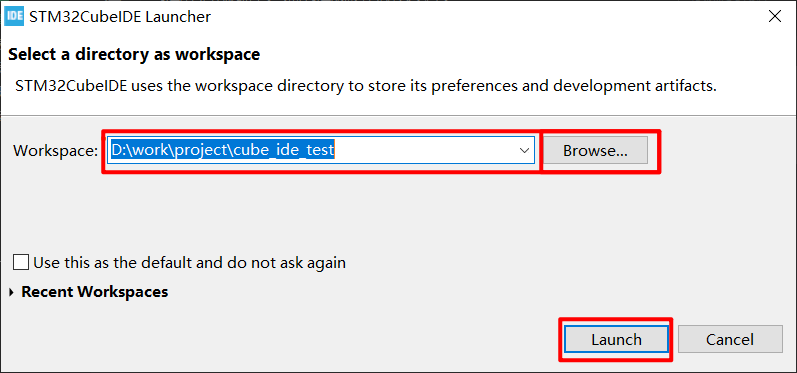
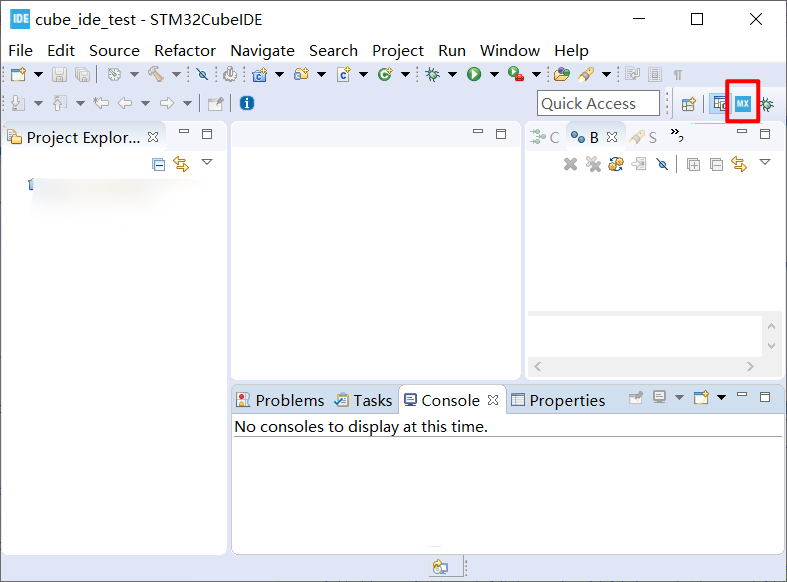
    <content type="html"><![CDATA[<link rel="stylesheet" class="aplayer-secondary-style-marker" href="\assets\css\APlayer.min.css"><script src="\assets\js\APlayer.min.js" class="aplayer-secondary-script-marker"></script><script class="meting-secondary-script-marker" src="\assets\js\Meting.min.js"></script><blockquote><p>凡事预则立，不预则废 ———— 《礼记·中庸》</p></blockquote><p>离上篇文章发布已经很久没有更新了，其实“预”了很久，Flag也“立”了很多个，但是呢，没有付诸行动。说多了就是掩饰，啥都不多说，直接开篇。<br><a id="more"></a></p><h3 id="STM32CubeIDE是个啥？"><a href="#STM32CubeIDE是个啥？" class="headerlink" title="STM32CubeIDE是个啥？"></a>STM32CubeIDE是个啥？</h3><ul><li>第一眼看到这个软件的名字，就马上想到了STM32CubeMX这个可视化的芯片参数配置工具，总感觉它俩之间有着千丝万缕的关系。其实，这俩还真有关系。</li><li>先来看看官方的解释：<ul><li>STM32CubeIDE is an all-in-one multi-OS development tool, which is part of the STM32Cube software ecosystem</li><li>这货属于STM32Cube软件生态中的一个多平台、高度集成的开发工具</li></ul></li><li>再来看看官方的图片：<br><img src="/img/stm32/stm32cubeide-install-01.jpg" alt></li><li>这下是不是看明白了？还不明白，再贴个图：<br><img src="/img/stm32/stm32cubeide-install-02.png" alt></li><li>这一行工具栏，怎么这么眼熟，这个不就是它么？<br><img src="/img/stm32/stm32cubeide-install-03.png" width="50%" height="50%"></li><li>开始懂了</li></ul><h3 id="STM32CubeIDE软件获取和安装"><a href="#STM32CubeIDE软件获取和安装" class="headerlink" title="STM32CubeIDE软件获取和安装"></a>STM32CubeIDE软件获取和安装</h3><ol><li>下载</li></ol><ul><li>支持系统：Windows、Linux、MacOS</li><li>官方链接：<a href="https://www.st.com/en/development-tools/stm32cubeide.html#get-software" target="_blank" rel="noopener">STM32CubeIDE</a></li></ul><ol start="2"><li>安装</li></ol><ul><li>这个就比较简单了，作为一个程序员，安装路径就不要用中文了吧…</li></ul><h3 id="STM32CubeIDE界面简介"><a href="#STM32CubeIDE界面简介" class="headerlink" title="STM32CubeIDE界面简介"></a>STM32CubeIDE界面简介</h3><ol><li>工程路径选择：启动软件后，选择一个路径作为Workspcace，然后就Launch如下图所示：<br><img src="/img/stm32/stm32cubeide-install-04.png" alt></li><li>工具栏介绍：如果经常使用eclipse开发C/C++程序，这个界面就非常熟悉了，较eclipse工具增加一个CubeMX配置插件<br><img src="/img/stm32/stm32cubeide-install-05.png" alt> </li><li>暂时就先简单介绍这么多，下次再记录工程创建和编译调试相关内容</li></ol>]]></content>
    
    <summary type="html">
    
      &lt;blockquote&gt;
&lt;p&gt;凡事预则立，不预则废 ———— 《礼记·中庸》&lt;/p&gt;
&lt;/blockquote&gt;
&lt;p&gt;离上篇文章发布已经很久没有更新了，其实“预”了很久，Flag也“立”了很多个，但是呢，没有付诸行动。说多了就是掩饰，啥都不多说，直接开篇。&lt;br&gt;
    
    </summary>
    
      <category term="技术" scheme="https://kangjun.online/categories/technology/"/>
    
    
      <category term="STM32" scheme="https://kangjun.online/tags/STM32/"/>
    
      <category term="STM32CubeIDE" scheme="https://kangjun.online/tags/STM32CubeIDE/"/>
    
  </entry>
  
  <entry>
    <title>闺女66天</title>
    <link href="https://kangjun.online/life/life-my-daughter-66-days.html"/>
    <id>https://kangjun.online/life/life-my-daughter-66-days.html</id>
    <published>2019-08-05T16:13:34.000Z</published>
    <updated>2020-03-12T16:31:56.762Z</updated>
    
    <content type="html"><![CDATA[<link rel="stylesheet" class="aplayer-secondary-style-marker" href="\assets\css\APlayer.min.css"><script src="\assets\js\APlayer.min.js" class="aplayer-secondary-script-marker"></script><script class="meting-secondary-script-marker" src="\assets\js\Meting.min.js"></script><p>闺女蕙出生有66天了，但是感觉过了很久一样，对于我和老婆来说，都是挺艰辛的。这或许印证了一句老话：养儿方知为母难。<br><a id="more"></a></p><p>最近，突然感觉压力好大，主要还是由于新房交付，开始月供的日子了。我真的成了他人口中的”月光族”。</p><p>在这个阶段，或许是人生的另一个重要的转折点。有压力固然是好事，但是并不能完全因为压力太大而自暴自弃；反而应该为自己的未来做一个更好的规划。</p><p>同时，时刻鞭策自己，应该承担起更多的责任，应该有一个坚定的方向，有一个让自己持之以恒的事业来提升和突破。</p>]]></content>
    
    <summary type="html">
    
      &lt;p&gt;闺女蕙出生有66天了，但是感觉过了很久一样，对于我和老婆来说，都是挺艰辛的。这或许印证了一句老话：养儿方知为母难。&lt;br&gt;
    
    </summary>
    
      <category term="生活" scheme="https://kangjun.online/categories/life/"/>
    
    
      <category term="daughter" scheme="https://kangjun.online/tags/daughter/"/>
    
  </entry>
  
  <entry>
    <title>Hexo 之 主题Maupassant侧边栏增加音乐Aplayer</title>
    <link href="https://kangjun.online/technology/hexo-widget-music.html"/>
    <id>https://kangjun.online/technology/hexo-widget-music.html</id>
    <published>2019-05-27T14:20:08.000Z</published>
    <updated>2020-03-12T16:31:34.437Z</updated>
    
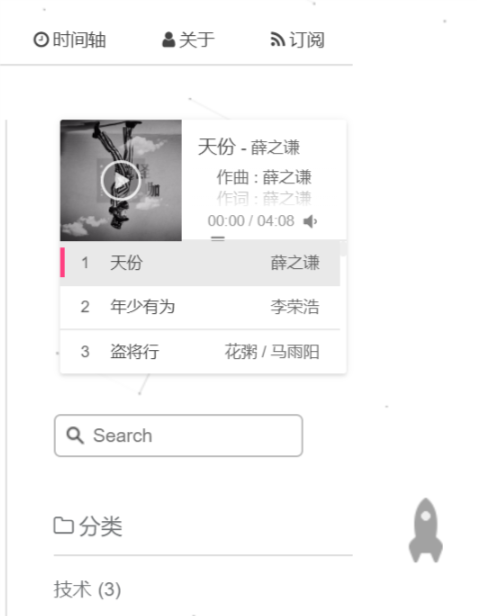
    <content type="html"><![CDATA[<link rel="stylesheet" class="aplayer-secondary-style-marker" href="\assets\css\APlayer.min.css"><script src="\assets\js\APlayer.min.js" class="aplayer-secondary-script-marker"></script><script class="meting-secondary-script-marker" src="\assets\js\Meting.min.js"></script><p>在Hexo的Maupassant主题下，为了使博客的功能更加完善，增加音乐播放模块，看了Maupassant主题作者的ISSU，发现并没有该功能的实现，不过从部分网友的折腾过程来看，使用Aplayer实现的效果是最好的。<br><a id="more"></a></p><h3 id="需求"><a href="#需求" class="headerlink" title="需求"></a>需求</h3><p>网上查找了许多Hexo增加音乐播放的文章，大部分是在博客文章中添加音乐播放功能，而且接口封装非常便捷。自己就思考，可不可以将播放功能增加到侧边栏。</p><h3 id="方案"><a href="#方案" class="headerlink" title="方案"></a>方案</h3><p>主流的方案有以下几种：</p><ol><li>通过网易云的外链生成iframe代码或者flash代码，插入个人需要将音乐模块放置的地方</li><li>通过Aplayer插入播放音乐功能</li><li>通过Hexo-tag-aplayer引入Aplayer</li><li>通过Aplayer和MetingJS接口，将class为aplayer的div插入相应的位置</li></ol><h3 id="分析"><a href="#分析" class="headerlink" title="分析"></a>分析</h3><ol><li>方案一（网易云外链代码插入）<ul><li>优点：方便快捷，直接通过因为就可以生成代码</li><li>缺点：有版权的歌曲无法无法播放，尺寸有限制</li></ul></li><li>方案二（Aplayer插入）<ul><li>优点：界面美观，尺寸自适应</li><li>缺点：需要配置音乐的url，比较麻烦</li></ul></li><li>方案三（Hexo-tag-aplayer引入Aplayer）<ul><li>优点：非常便捷，直接根据id或者list id就可以播放</li><li>缺点：目前只能在文章中引用</li></ul></li><li>方案四（MetingJS和Aplayer结合使用）<ul><li>优点：可以音乐播放添加到任何位置，自适应，根据音乐id或列表list id就可以播放音乐</li><li>缺点：需要更改主题脚本文件</li></ul></li></ol><h3 id="实战"><a href="#实战" class="headerlink" title="实战"></a>实战</h3><p>由于个人的需求是侧边栏实现音乐播放功能，通过上述的对比，最终现在方案四，具体的修改方法如下：</p><ul><li><p>在Maupassant主题路径增加文件<br>themes/maupassant/layout/_widget/aplayer.pug ，文件内容如下</p><figure class="highlight js"><table><tr><td class="gutter"><pre><span class="line">1</span><br><span class="line">2</span><br><span class="line">3</span><br><span class="line">4</span><br><span class="line">5</span><br><span class="line">6</span><br></pre></td><td class="code"><pre><span class="line">.widget</span><br><span class="line">  link(rel=<span class="string">"stylesheet"</span>, type=<span class="string">'text/css'</span>, href=<span class="string">"https://cdn.jsdelivr.net/npm/aplayer@1.10/dist/APlayer.min.css"</span>)</span><br><span class="line">  script(type=<span class="string">'text/javascript'</span>, src=<span class="string">"https://cdn.jsdelivr.net/npm/aplayer@1.10/dist/APlayer.min.js"</span>)</span><br><span class="line">  script(type=<span class="string">'text/javascript'</span>, src=<span class="string">"https://cdn.jsdelivr.net/npm/meting@1.2/dist/Meting.min.js"</span>)</span><br><span class="line">  </span><br><span class="line">  div(<span class="class"><span class="keyword">class</span></span>=<span class="string">"aplayer"</span>, data-id=<span class="string">"2578068117"</span> ,data-server=<span class="string">"netease"</span> ,data-type=<span class="string">"playlist"</span> ,data-listmaxheight=<span class="string">"98px"</span>,data-theme=<span class="string">"#FF4081"</span>)</span><br></pre></td></tr></table></figure></li><li><p>修改Maupassant主题下的配置文件<br>themes/maupassant/_config.yml , 在widgets标签下增加aplaye ，修改如下：</p><figure class="highlight yml"><table><tr><td class="gutter"><pre><span class="line">1</span><br><span class="line">2</span><br><span class="line">3</span><br><span class="line">4</span><br><span class="line">5</span><br><span class="line">6</span><br><span class="line">7</span><br><span class="line">8</span><br></pre></td><td class="code"><pre><span class="line"><span class="attr">widgets:</span> <span class="comment">## Six widgets in sidebar provided: search, category, tag, recent_posts, rencent_comments and links.</span></span><br><span class="line"><span class="bullet">  -</span> <span class="string">aplayer</span> </span><br><span class="line"><span class="bullet">  -</span> <span class="string">search</span></span><br><span class="line"><span class="bullet">  -</span> <span class="string">category</span></span><br><span class="line"><span class="bullet">  -</span> <span class="string">tag</span></span><br><span class="line"><span class="bullet">  -</span> <span class="string">recent_posts</span></span><br><span class="line"><span class="bullet">  -</span> <span class="string">recent_comments</span></span><br><span class="line"><span class="bullet">  -</span> <span class="string">links</span></span><br></pre></td></tr></table></figure></li><li><p>编译博客<br>执行hexo g生成博客代码</p></li><li><p>本地部署<br>执行hexo s部署本地localhost:4000</p></li><li><p>服务器部署<br>  执行hexo d部署到github page</p></li><li><p>效果<br><img src="/img/aplayer.png" alt="Aplayer"></p></li></ul>]]></content>
    
    <summary type="html">
    
      &lt;p&gt;在Hexo的Maupassant主题下，为了使博客的功能更加完善，增加音乐播放模块，看了Maupassant主题作者的ISSU，发现并没有该功能的实现，不过从部分网友的折腾过程来看，使用Aplayer实现的效果是最好的。&lt;br&gt;
    
    </summary>
    
      <category term="技术" scheme="https://kangjun.online/categories/technology/"/>
    
    
      <category term="Hexo" scheme="https://kangjun.online/tags/Hexo/"/>
    
  </entry>
  
  <entry>
    <title>Hexo 之 主题Maupassant动态背景canvas-nest显示问题</title>
    <link href="https://kangjun.online/technology/hexo-canvas-nest-display.html"/>
    <id>https://kangjun.online/technology/hexo-canvas-nest-display.html</id>
    <published>2019-05-25T03:56:20.000Z</published>
    <updated>2020-03-12T16:31:43.326Z</updated>
    
    <content type="html"><![CDATA[<link rel="stylesheet" class="aplayer-secondary-style-marker" href="\assets\css\APlayer.min.css"><script src="\assets\js\APlayer.min.js" class="aplayer-secondary-script-marker"></script><script class="meting-secondary-script-marker" src="\assets\js\Meting.min.js"></script><p>为了让自己的个人博客不显得那么单调，发现Maupassant支持动态背景，但是在使用的过程中发现了一点小问题，导致无法使用。<br><a id="more"></a></p><h3 id="问题"><a href="#问题" class="headerlink" title="问题"></a>问题</h3><p>在使用Maupassant主题时，发现canvas-nest的enable设置为true后还是无法显示。</p><h3 id="原因"><a href="#原因" class="headerlink" title="原因"></a>原因</h3><p>在网上查找使用莫泊桑主题的网友博客发现，可以使用这个功能，然后分析了一下页面代码，发现我的博客没有canvas这个标签的代码。查看js源，发现路径不同。</p><figure class="highlight js"><table><tr><td class="gutter"><pre><span class="line">1</span><br><span class="line">2</span><br><span class="line">3</span><br><span class="line">4</span><br><span class="line">5</span><br></pre></td><td class="code"><pre><span class="line">我的博客：</span><br><span class="line">&lt;script type=<span class="string">"text/javascript"</span> color=<span class="string">"100,100,100"</span> opacity=<span class="string">"0.5"</span> zindex=<span class="string">"-2"</span> count=<span class="string">"50"</span> src=<span class="string">"//lib.baomitu.com/canvas-nest.js/2.0.4/canvas-nest.umd.jscanvas-nest.min.js"</span>&gt;&lt;/script&gt;</span><br><span class="line"></span><br><span class="line">网友博客：</span><br><span class="line">&lt;script type=<span class="string">"text/javascript"</span> color=<span class="string">"100,100,100"</span> opacity=<span class="string">"0.5"</span> zindex=<span class="string">"-2"</span> count=<span class="string">"50"</span> src=<span class="string">"//cdn.bootcss.com/canvas-nest.js/1.0.1/canvas-nest.min.js"</span>&gt;&lt;/script&gt;</span><br></pre></td></tr></table></figure><h3 id="更改方法"><a href="#更改方法" class="headerlink" title="更改方法"></a>更改方法</h3><p>修改themes/maupassant/layout/_partial/after_footer.pug文件</p><figure class="highlight js"><table><tr><td class="gutter"><pre><span class="line">1</span><br><span class="line">2</span><br><span class="line">3</span><br><span class="line">4</span><br><span class="line">5</span><br></pre></td><td class="code"><pre><span class="line">更改前：</span><br><span class="line">script(type=<span class="string">'text/javascript'</span>, color=color, opacity=opacity, zIndex=zIndex, count=count,src=<span class="string">'//lib.baomitu.com/canvas-nest.js/2.0.4/canvas-nest.umd.js'</span>)</span><br><span class="line"></span><br><span class="line">更改后：</span><br><span class="line">script(type=<span class="string">'text/javascript'</span>, color=color, opacity=opacity, zIndex=zIndex, count=count,src=<span class="string">'//cdn.bootcss.com/canvas-nest.js/1.0.1/canvas-nest.min.js'</span>)</span><br></pre></td></tr></table></figure>]]></content>
    
    <summary type="html">
    
      &lt;p&gt;为了让自己的个人博客不显得那么单调，发现Maupassant支持动态背景，但是在使用的过程中发现了一点小问题，导致无法使用。&lt;br&gt;
    
    </summary>
    
      <category term="技术" scheme="https://kangjun.online/categories/technology/"/>
    
    
      <category term="Hexo" scheme="https://kangjun.online/tags/Hexo/"/>
    
  </entry>
  
  <entry>
    <title>STM32学习笔记 之 序言</title>
    <link href="https://kangjun.online/technology/stm32-note-1.html"/>
    <id>https://kangjun.online/technology/stm32-note-1.html</id>
    <published>2019-05-24T14:05:37.000Z</published>
    <updated>2020-05-27T14:38:01.301Z</updated>
    
    <content type="html"><![CDATA[<link rel="stylesheet" class="aplayer-secondary-style-marker" href="\assets\css\APlayer.min.css"><script src="\assets\js\APlayer.min.js" class="aplayer-secondary-script-marker"></script><script class="meting-secondary-script-marker" src="\assets\js\Meting.min.js"></script><p>技术是不断更新的，但是经验是一点一滴积累的。经历多并不代表经验深厚，需要总结、积累、分享，能力才可以得到质的提升。<br><a id="more"></a></p><h3 id="履历"><a href="#履历" class="headerlink" title="履历"></a>履历</h3><p>从事嵌入式软件开发工作接近三年了，但是对于STM32的接触是从最近一份工作开始的。大概用了半年时间阅读项目中的源代码，并且将项目中的HAL编写的代码转换成寄存器版本的代码，算是对STM32简单的入门了解。</p><h3 id="缘起"><a href="#缘起" class="headerlink" title="缘起"></a>缘起</h3><p>最近，听说公司要搬迁了，考虑到家庭胡因素可能无法跟随公司一起搬迁。与此同时，自我审视了一番，发现自己有点儿偏离了嵌入式软件开发的方向了，瞬间有种恐惧来袭，毕竟我不是科班出生搞软件的，还是需要坚持一个方向，需要深耕，需要积累，这样才能够突破自己的技术高度，真正的拥有一技之长。</p><h3 id="近况"><a href="#近况" class="headerlink" title="近况"></a>近况</h3><p>近半年大部分的时间都花在WEB开发，包括服务器端的PHP、PYTHON编写，前端HTML+CSS的编写（其实就是拷贝再定制了）。</p><h3 id="展望"><a href="#展望" class="headerlink" title="展望"></a>展望</h3><p>近日，计划更加系统地学习一下STM32，一方面加深STM32的知识，另一方面从整体框架的视角上更加全面地对STM32有一个系统的认知。</p><h3 id="规划"><a href="#规划" class="headerlink" title="规划"></a>规划</h3><ul><li>选择Cotex-M3和Cotex-M4两种架构的STM32芯片两种STM32F103ZET6和STM32F407ZGT6</li><li>STM32官方开发软件Keil的使用</li><li>STM32时钟分频</li><li>STM32通信I2C、SPI、486、CAN、UART</li><li>STM32 DAC/ADC采样</li><li>STM32 RTOS移植</li></ul>]]></content>
    
    <summary type="html">
    
      &lt;p&gt;技术是不断更新的，但是经验是一点一滴积累的。经历多并不代表经验深厚，需要总结、积累、分享，能力才可以得到质的提升。&lt;br&gt;
    
    </summary>
    
      <category term="技术" scheme="https://kangjun.online/categories/technology/"/>
    
    
      <category term="STM32" scheme="https://kangjun.online/tags/STM32/"/>
    
  </entry>
  
  <entry>
    <title>Hello World</title>
    <link href="https://kangjun.online/technology/hello-world.html"/>
    <id>https://kangjun.online/technology/hello-world.html</id>
    <published>2019-05-22T14:05:37.000Z</published>
    <updated>2020-03-12T16:45:46.059Z</updated>
    
    <content type="html"><![CDATA[<link rel="stylesheet" class="aplayer-secondary-style-marker" href="\assets\css\APlayer.min.css"><script src="\assets\js\APlayer.min.js" class="aplayer-secondary-script-marker"></script><script class="meting-secondary-script-marker" src="\assets\js\Meting.min.js"></script><p>Welcome to <a href="https://hexo.io/" target="_blank" rel="noopener">Hexo</a>! This is your very first post. Check <a href="https://hexo.io/docs/" target="_blank" rel="noopener">documentation</a> for more info. If you get any problems when using Hexo, you can find the answer in <a href="https://hexo.io/docs/troubleshooting.html" target="_blank" rel="noopener">troubleshooting</a> or you can ask me on <a href="https://github.com/hexojs/hexo/issues" target="_blank" rel="noopener">GitHub</a>.</p><h2 id="Quick-Start"><a href="#Quick-Start" class="headerlink" title="Quick Start"></a>Quick Start</h2><h3 id="Create-a-new-post"><a href="#Create-a-new-post" class="headerlink" title="Create a new post"></a>Create a new post</h3><figure class="highlight bash"><table><tr><td class="gutter"><pre><span class="line">1</span><br></pre></td><td class="code"><pre><span class="line">$ hexo new <span class="string">"My New Post"</span></span><br></pre></td></tr></table></figure><p>More info: <a href="https://hexo.io/docs/writing.html" target="_blank" rel="noopener">Writing</a></p><h3 id="Run-server"><a href="#Run-server" class="headerlink" title="Run server"></a>Run server</h3><figure class="highlight bash"><table><tr><td class="gutter"><pre><span class="line">1</span><br></pre></td><td class="code"><pre><span class="line">$ hexo server</span><br></pre></td></tr></table></figure><p>More info: <a href="https://hexo.io/docs/server.html" target="_blank" rel="noopener">Server</a></p><h3 id="Generate-static-files"><a href="#Generate-static-files" class="headerlink" title="Generate static files"></a>Generate static files</h3><figure class="highlight bash"><table><tr><td class="gutter"><pre><span class="line">1</span><br></pre></td><td class="code"><pre><span class="line">$ hexo generate</span><br></pre></td></tr></table></figure><p>More info: <a href="https://hexo.io/docs/generating.html" target="_blank" rel="noopener">Generating</a></p><h3 id="Deploy-to-remote-sites"><a href="#Deploy-to-remote-sites" class="headerlink" title="Deploy to remote sites"></a>Deploy to remote sites</h3><figure class="highlight bash"><table><tr><td class="gutter"><pre><span class="line">1</span><br></pre></td><td class="code"><pre><span class="line">$ hexo deploy</span><br></pre></td></tr></table></figure><p>More info: <a href="https://hexo.io/docs/deployment.html" target="_blank" rel="noopener">Deployment</a></p>]]></content>
    
    <summary type="html">


        &lt;link rel=&quot;stylesheet&quot; class=&quot;aplayer-secondary-style-marker&quot; href=&quot;\assets\css\APlayer.min.css&quot;&gt;&lt;script src=&quot;\assets\js\APlayer.min.js&quot; cla
      
    
    </summary>
    
      <category term="技术" scheme="https://kangjun.online/categories/technology/"/>
    
    
      <category term="Hexo" scheme="https://kangjun.online/tags/Hexo/"/>
    
  </entry>
  
</feed>